TABLE OF CONTENTS
1. Save & Close
If you are not ready to finish the batch, click Save & Close. This saves your progress so you can return later and continue working on the batch.
After you click Save & Close:
The batch status changes to Saved
The scanned images remain saved on your computer and not yet uploaded to GE servers
2. Complete and Transfer the Batch
When you are ready to finish the batch, enter the required metadata for the selected repository and click Complete. The system will ask you to confirm before continuing.
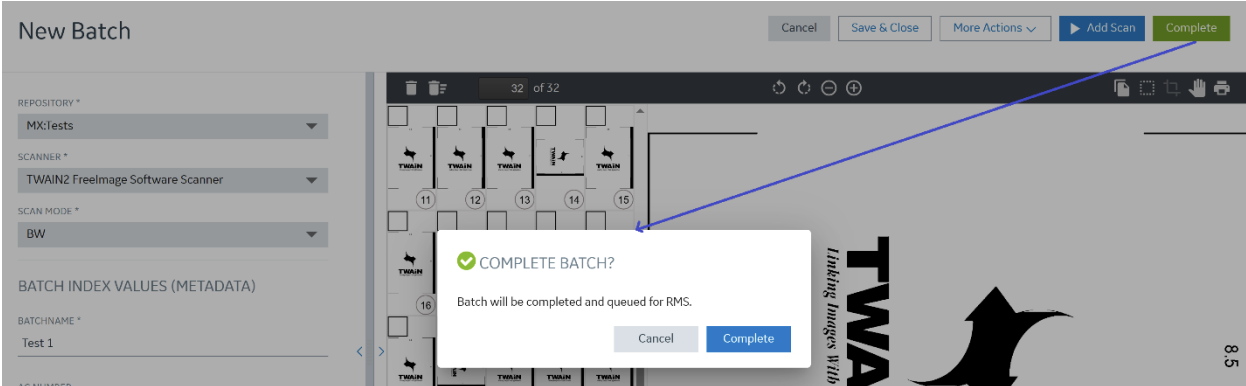
After you confirm:
The batch moves to Uploading Batch status
The images are uploaded from your computer to GE servers.
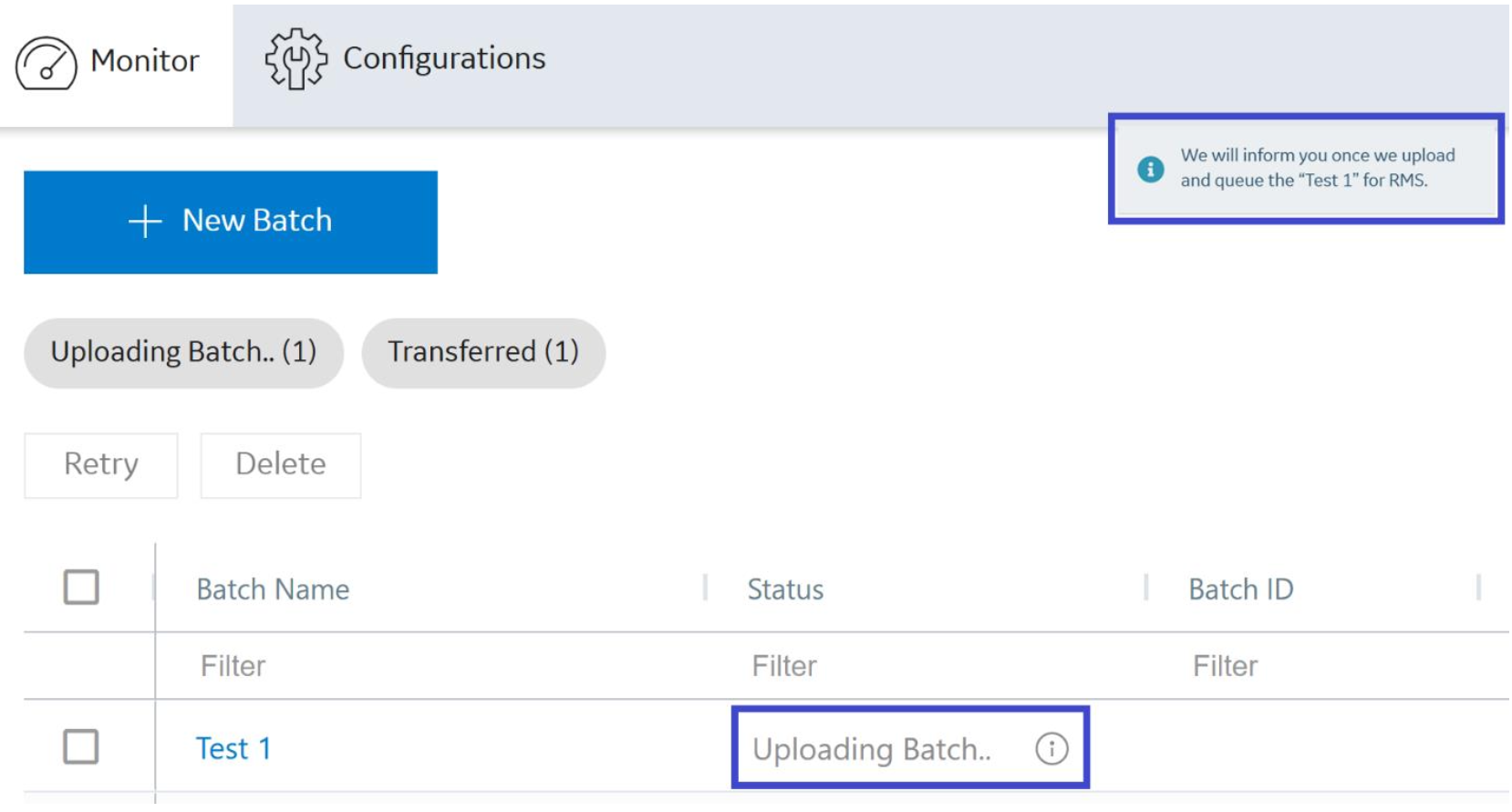
The batch then moves to Queued status. You can still open it and review the batch, but you can no longer make changes.
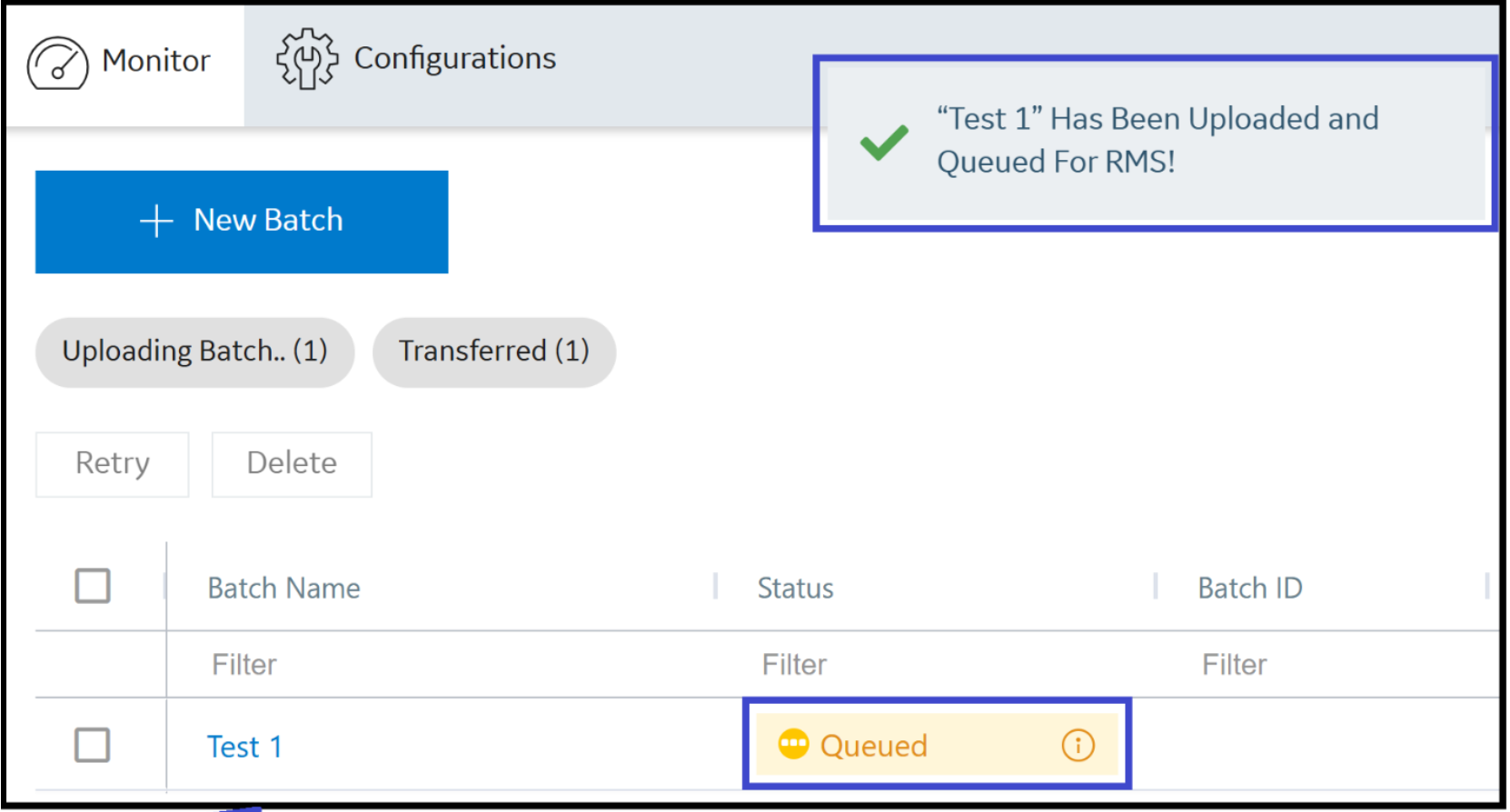
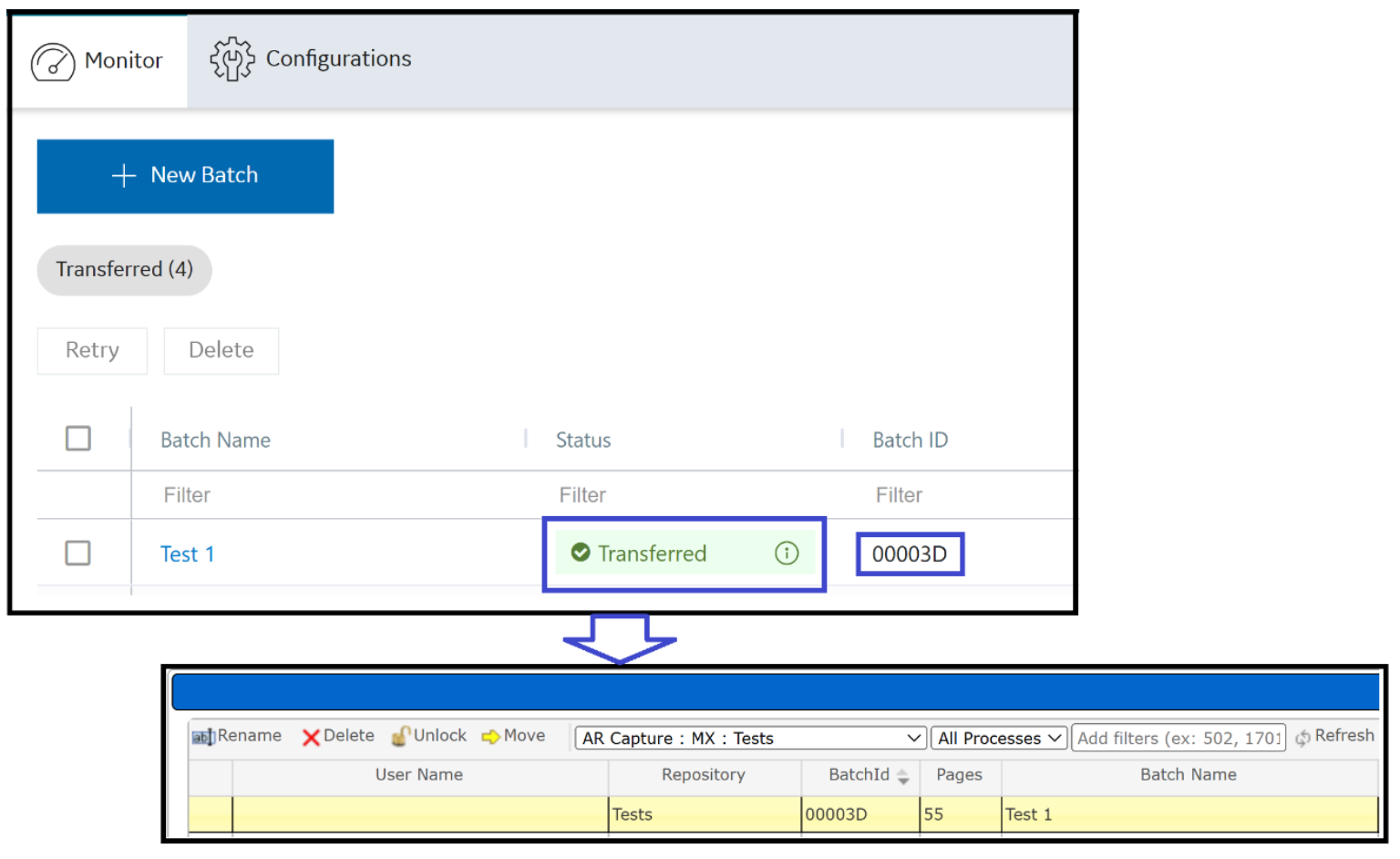
The system automatically starts the transfer to RMS/ATS, depending on the repository you selected. This moves the batch to Transferring status.
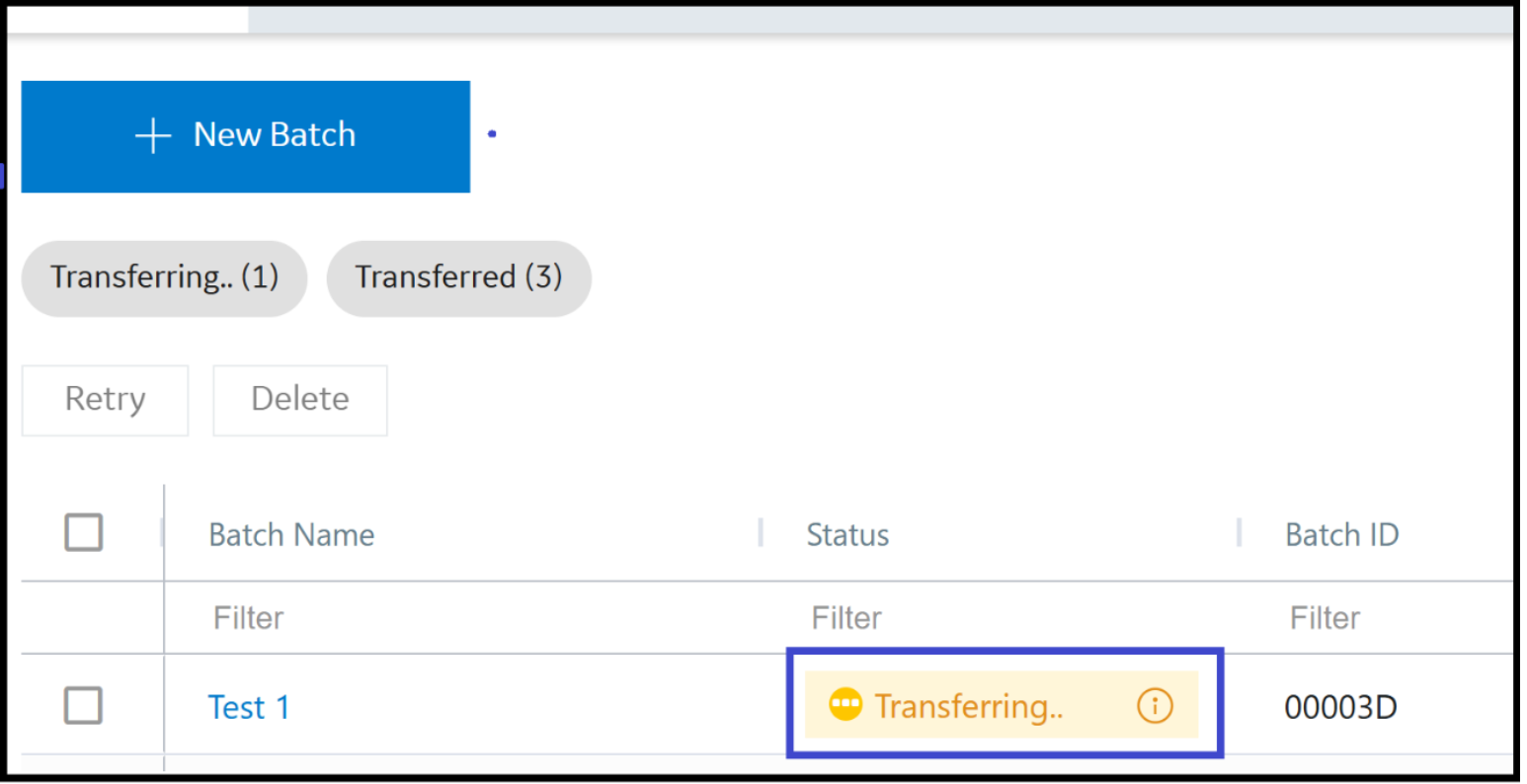
- When finished, the batch status becomes Transferred. This makes the batch visible in RMS/ATS, depending on the repository you selected and your configuration, with the populated Batch ID.
Was this article helpful?
That’s Great!
Thank you for your feedback
Sorry! We couldn't be helpful
Thank you for your feedback
Feedback sent
We appreciate your effort and will try to fix the article